Messaging creators
Start conversations with creators and track replies in Messages.
Once you've saved a creator, you can start a conversation and keep the whole back-and-forth in one
place under Messages.
Before you message
Messaging sends through your brand's own social account, so a brand Instagram or TikTok connection
needs to be in place. Searching never requires this — only messaging does. If your brand account
isn't connected yet, an admin can set it up (see
Connecting Instagram).
Starting a conversation
- Open a creator from your roster or a group.
- Start the conversation — it appears in Messages right away, even before the first reply.
- Type and send your message. Outgoing messages send through the connected platform.
The Messages inbox
Messages lists all your conversations. Unread replies are badged in the navigation, and opening a
thread marks it read. Each conversation is scoped to the brand workspace you sent it from.
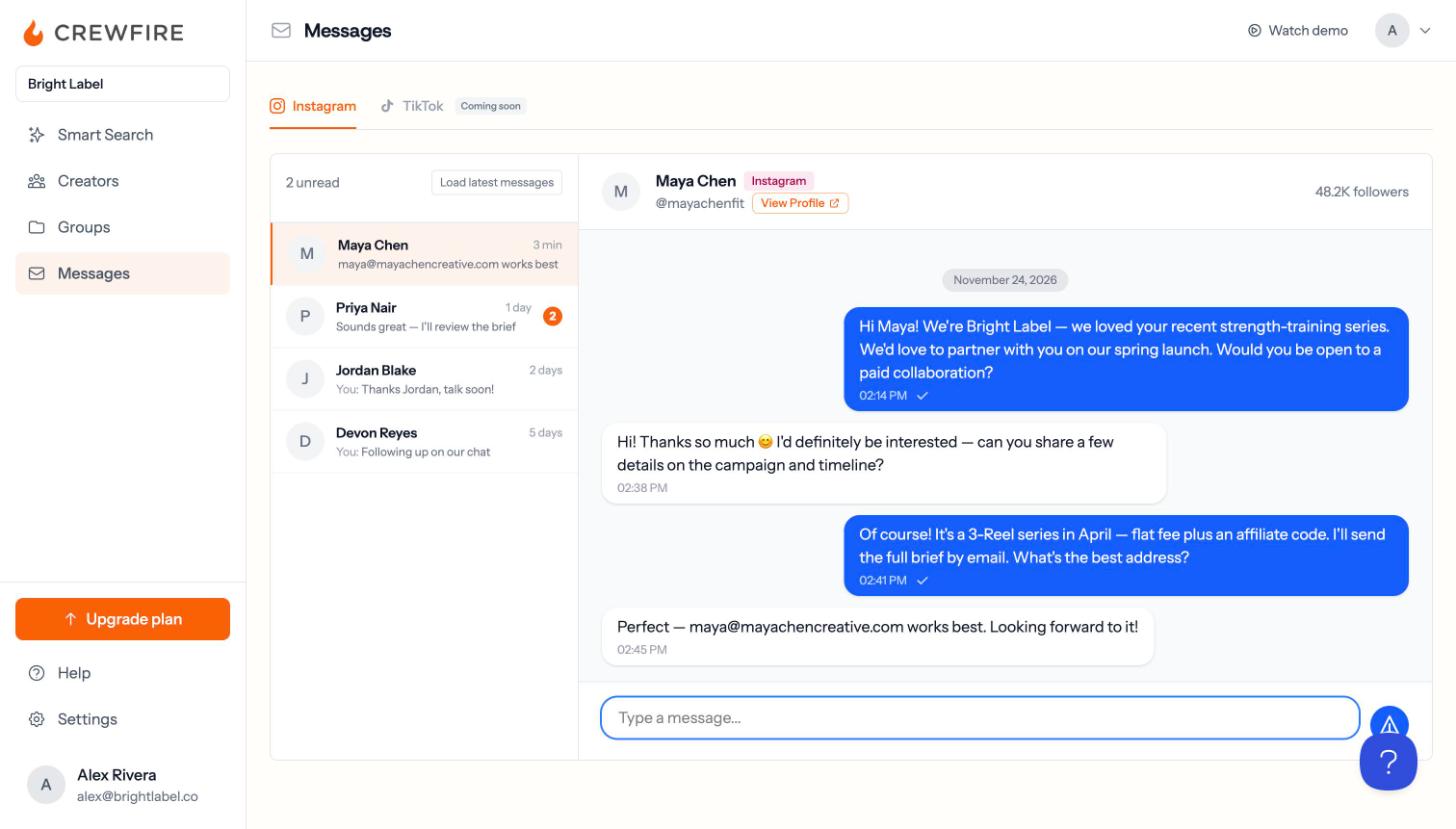
The Messages inbox — conversations on the left, the full back-and-forth on the right, with your sent messages in blue.
How many conversations you can keep open
Paid plans keep every conversation open — message as many creators as you like, with no cap on the
back-and-forth. On the Free plan, only your earliest conversations stay open:
| Plan | Open conversations |
|---|---|
| Free | 25 |
| Pro | Unlimited |
| Growth | Unlimited |
| Business | Unlimited |
| Agency | Unlimited |
Nothing is ever deleted — conversations beyond that number are simply locked until you upgrade. Open a
locked one and you'll see an upgrade prompt; upgrade and all of your conversations reopen at once, so
you can pick up right where you left off with every creator you've reached.
Platform differences
Instagram and TikTok have different rules for who you can message and how. CrewFire follows each
platform's requirements, so the available outreach options can differ between a creator on Instagram
and one on TikTok.
Reaching lots of creators for one campaign? Organize them into a
group first to keep your outreach tidy.
More in Organizing & Outreach
Still need help?
Can't find what you're looking for? Our team is happy to help.
Or email us directly at support@crewfire.com