Inviting teammates
Invite members, choose roles, and manage who's on your team.
Owners and admins can invite people to the team from the Team page.
Sending an invite
- Open the Team page.
- Enter the teammate's email and pick a role.
- Send the invite.
- If they already have a CrewFire account, they're added to the team directly.
- If not, they receive an email invitation to set a password and join.
Invites are limited by your plan's available seats. If you're out of seats, add more (Growth and
Business) or upgrade — see Annual billing & seats.
Roles
| Role | Can do |
|---|---|
| Owner | Everything, including billing and team settings |
| Admin | Manage members, invites, and brand access |
| Member | Work within the brands they're given access to |
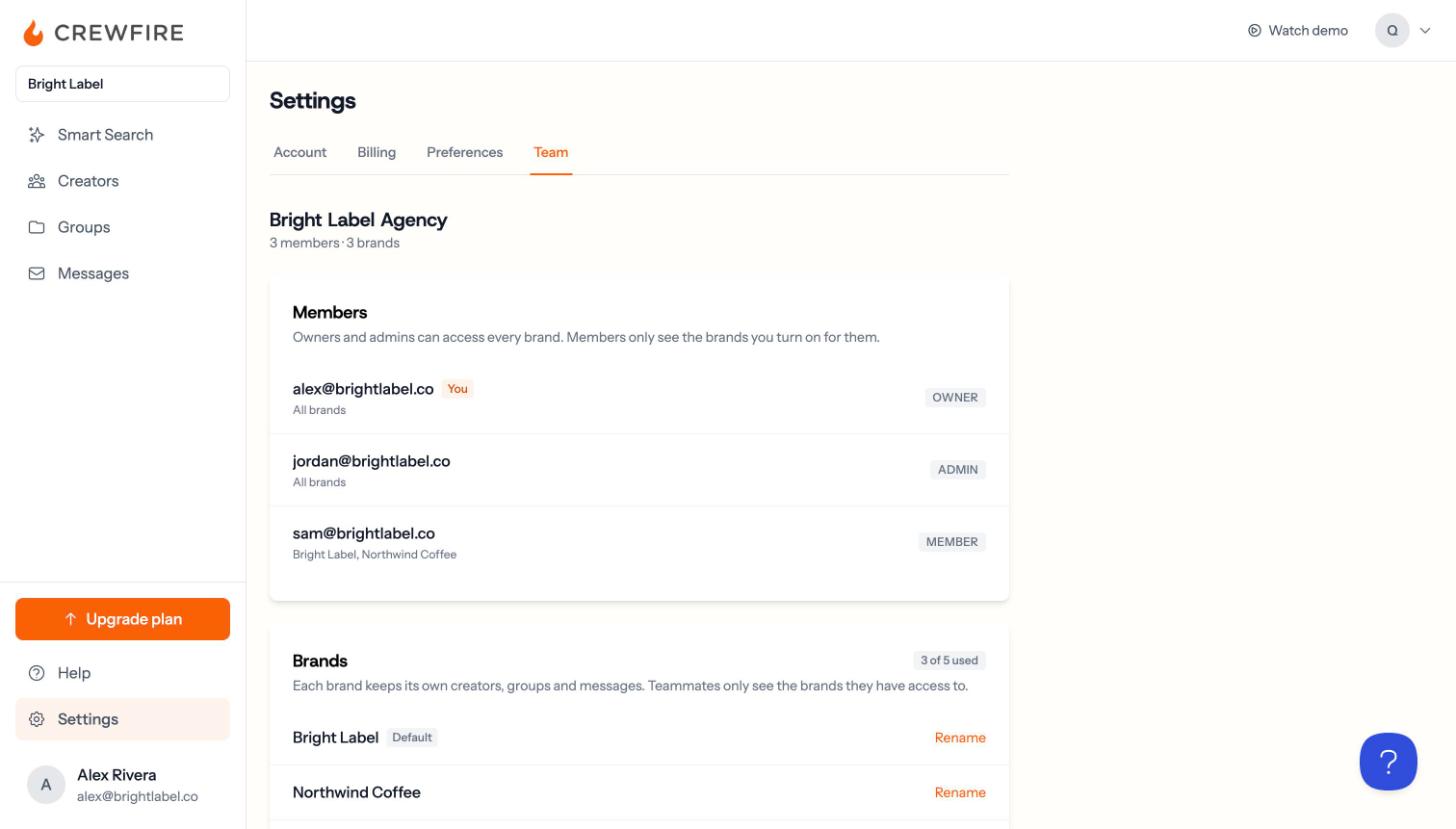
The Team page — members with their roles, and the brand workspaces they can access.
Managing access
From the Team page, owners and admins can manage members and control which brand workspaces each
member can access (see Brands & workspaces).
More in Teams & Brands
Still need help?
Can't find what you're looking for? Our team is happy to help.
Or email us directly at support@crewfire.com